

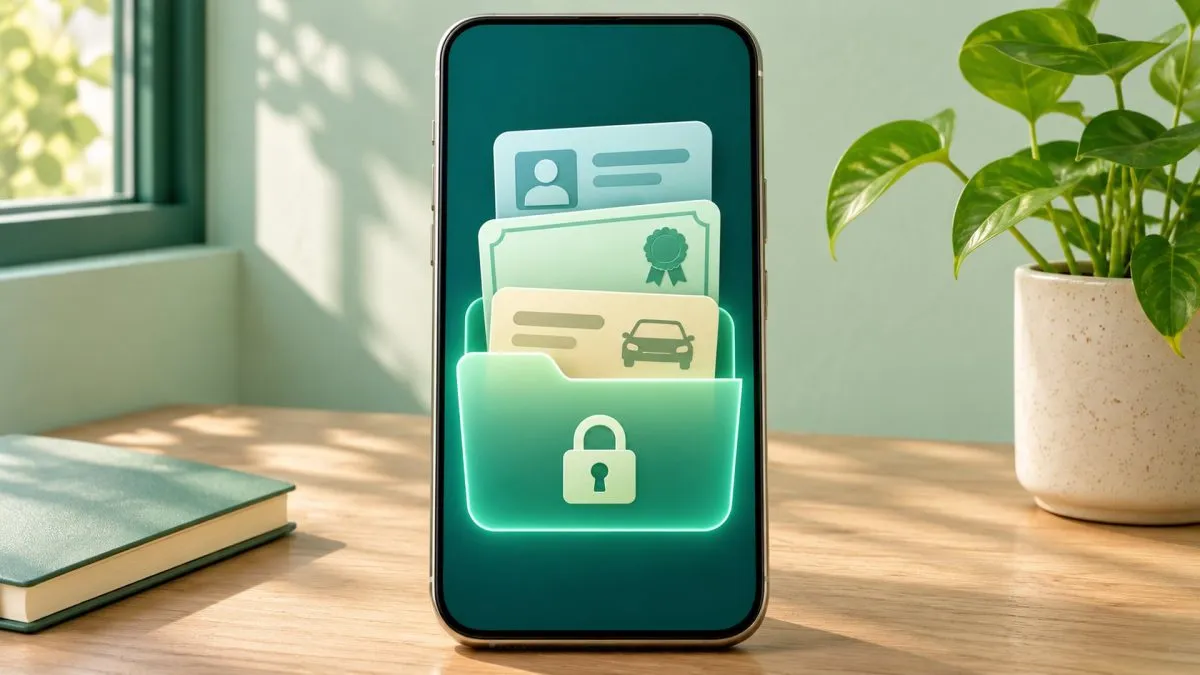
DigiLocker is the government's official digital document wallet. Documents fetched into it directly from issuing authorities are legally treated as equivalent to the originals under India's IT rules. Once set up, it saves you from carrying a folder of photocopies.
What you can keep in DigiLocker
- Driving licence and vehicle RC — from the transport department.
- Aadhaar — a verified copy from UIDAI.
- CBSE and many state board marksheets and certificates, and degrees from universities connected to the system.
- PAN verification record, vehicle insurance from many insurers, and various state certificates (caste, income, domicile and more, depending on the state).
The key distinction: "Issued documents" are fetched directly from the issuer and are valid. "Uploaded documents" are just scans you added yourself — handy to store, but not officially verified.
How to set it up
- Install the DigiLocker app from the Play Store or App Store, or visit digilocker.gov.in. Make sure it's the official app published by the National e-Governance Division.
- Sign up with your mobile number and verify with OTP.
- Link your Aadhaar — this makes fetching other documents much easier.
- Set a 6-digit security PIN.
How to fetch documents
- Tap Search or browse "Issued documents" by category (Education, Transport, Identity and so on).
- Pick the issuer — for example, your state's transport department for a driving licence.
- Enter the document number (licence number, RC number, roll number and year for marksheets).
- The document appears in your Issued Documents section.
Where it actually helps
- Traffic checks — your driving licence and RC in DigiLocker (or the mParivahan app) are valid for traffic police checks.
- Airports — DigiLocker is accepted at DigiYatra and many airport entry points as ID proof.
- Admissions and job joining — share verified marksheets and degrees with institutions that accept them.
- KYC — many banks and services can pull documents from DigiLocker with your consent instead of asking for photocopies.
Acceptance varies by office, so carry the physical copy for important appointments until you're sure.
Sharing safely
When an organisation requests a document through DigiLocker, you'll see a consent screen showing who's asking and what they'll get. Approve only requests you initiated. Never share your DigiLocker PIN or OTP with anyone who calls you — DigiLocker staff will never ask for them.
Tips
- Use DigiLocker's "Nominee" option, where available, so a family member can access documents if needed.
- Download the PDF copy of key documents and keep it in a password-protected folder for offline access.
- If a document isn't available, check whether your board, university or state department has joined DigiLocker yet — coverage keeps expanding.
Frequently asked questions
Are DigiLocker documents valid?
Documents fetched directly from issuing authorities into 'Issued documents' are legally treated as equivalent to originals. Scans you upload yourself are not verified.
Can I show DigiLocker to traffic police?
Yes. Your driving licence and RC in DigiLocker or mParivahan are valid for traffic police checks.
How do I add documents to DigiLocker?
Search or browse Issued documents, pick the issuer, enter the document number, and it appears in your account.
Is DigiLocker safe?
Use the official app, approve only sharing requests you started, and never share your DigiLocker PIN or OTP with callers.
Also read: Best Free Video Editing Apps for Android in India · Best Free Photo Editing Apps for Android Without Watermarks


