

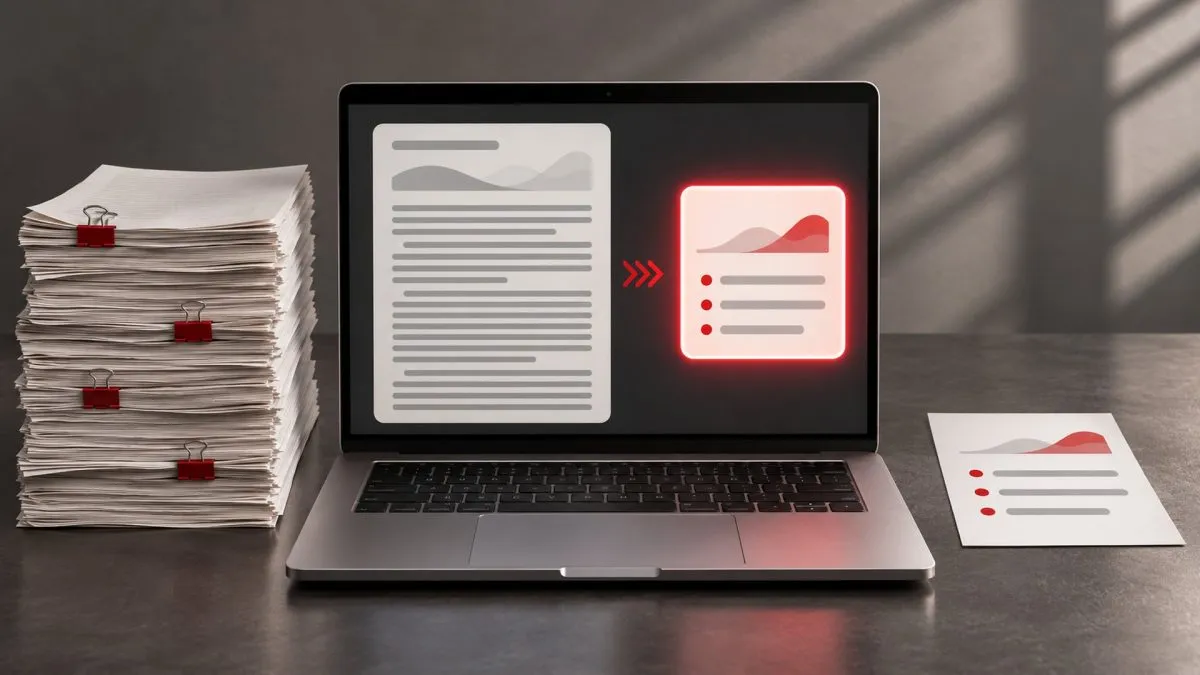
Whether it's a long office report, a government circular, a research paper or exam notes, AI tools can now read a PDF and summarise it in seconds. Most offer this for free with some limits. Here's how to get useful summaries rather than vague ones.
Free tools that can read PDFs
- ChatGPT, Gemini and Claude — upload a PDF in the chat (look for the attachment or "+" icon) and ask questions about it. Free tiers have daily limits on uploads and length.
- Google NotebookLM — designed for studying documents. Add several PDFs as sources and ask questions; answers come with citations pointing to the exact passage. It can also generate study guides and audio overviews.
- Microsoft Copilot in Edge — open a PDF in the Edge browser and ask Copilot to summarise the page.
Prompts that work better than "summarise this"
Be specific about who the summary is for and what format you want:
- "Summarise this report in 10 bullet points for a busy manager. Include any numbers, deadlines and decisions."
- "Explain this chapter in simple language for a Class 11 student, then list 5 likely exam questions."
- "List every obligation, fee and penalty mentioned in this agreement, with the page number."
- "What does this circular change compared to the previous rules? Quote the relevant lines."
- "Summarise in Hindi in simple words." — useful for sharing with family.
Always check the summary
AI summaries can leave out important details or, occasionally, state things the document doesn't say. Protect yourself:
- Ask the tool to quote the exact line or give the page number for each key point, then spot-check a few.
- Be extra careful with numbers, dates and legal or medical content.
- For scanned PDFs (photos of pages), accuracy depends on text recognition — check names and figures especially.
Handling very long documents
If a file is too large for the free tier, split it into sections (for example, chapter by chapter) and summarise each, then ask for a combined summary. NotebookLM handles multiple long sources better than most chat tools.
What you should never upload
Treat AI tools like any online service. Avoid uploading:
- Aadhaar, PAN, passport scans or bank statements,
- medical reports with your name,
- confidential office documents unless your company allows a specific AI tool,
- anything with passwords or account numbers.
Check each tool's settings — some let you turn off chat history or stop your conversations being used to improve their models.
Best uses for students
- Turn a chapter into flashcards or a one-page revision sheet.
- Ask the AI to quiz you on the content and explain mistakes.
- Compare two research papers' conclusions side by side.
Used this way, AI saves reading time without replacing understanding — and that's the balance worth aiming for.
Frequently asked questions
Which free AI tools can summarise a PDF?
ChatGPT, Gemini and Claude can read uploaded PDFs, Google NotebookLM gives cited answers across several documents, and Copilot in Edge can summarise open PDFs.
How do I get a better AI summary?
Say who it is for and what format you need, for example 10 bullet points with all numbers, deadlines and decisions.
Are AI summaries accurate?
Not always. Ask for page numbers or exact quotes for key points and spot-check numbers, dates and legal or medical details.
What documents should I not upload to AI tools?
Aadhaar, PAN or passport scans, bank statements, named medical reports and confidential office documents.
Also read: ChatGPT vs Gemini vs Claude: Which AI Assistant Fits You? · Best Free AI Tools Indian Students Can Actually Use


