

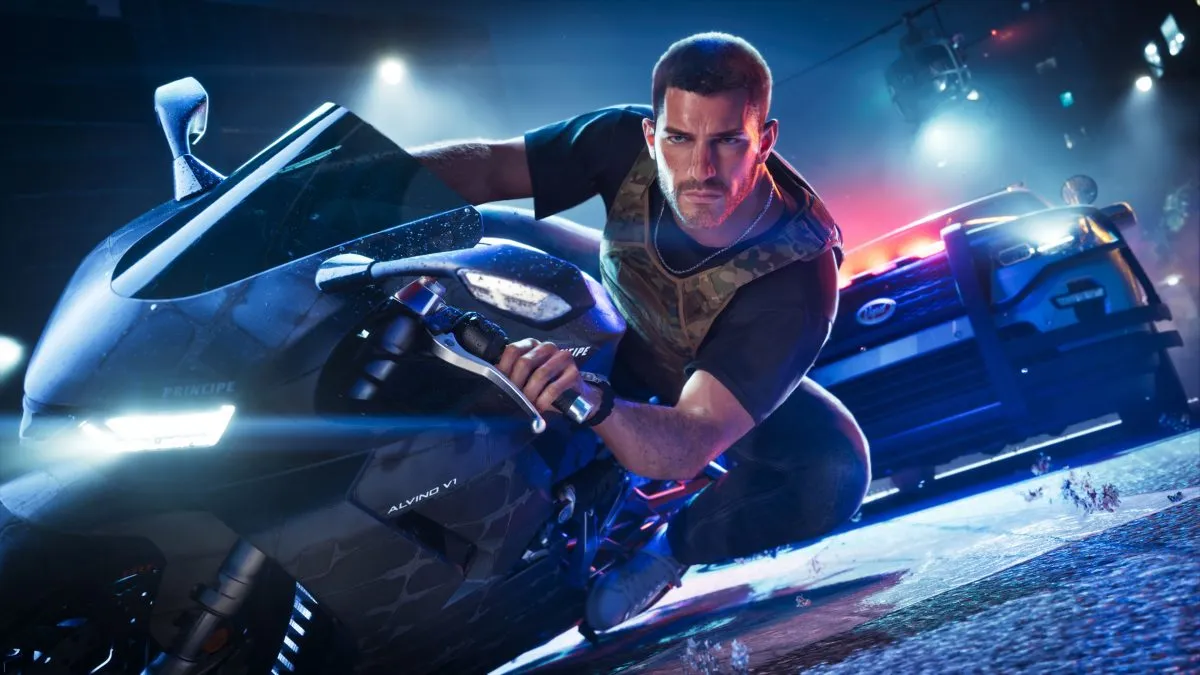
To play GTA 6 on PS5, you need a compatible PS5, a valid game licence and a completed installation. Buying the game on a phone or starting a download does not mean the console is ready for a first session. This India setup guide follows Sony's published download workflow and the game's official platform listing.
The steps cover purchase, installation and first launch. They do not claim a tested mission walkthrough or invent controller shortcuts. Once you reach the game, its tutorial and settings are the right references for the controls available in your current version.
1. Check the console and account
Confirm that you are using a PS5. Sony explicitly says GTA 6 is not playable on PS4. Sign in with the PlayStation account that owns the digital purchase, or check the disc requirements if you bought a physical copy.
Use the same account when comparing your receipt with the library. If the game appears missing, checking another account is a more useful first step than buying it again. Never send a seller your password or verification codes to “activate” a purchase.
2. Choose the right product
Open the official India PlayStation Store listing and read the edition name. Distinguish the full game from an upgrade or add-on. Check the current checkout price and keep the confirmation email once the purchase succeeds.
For a physical copy, check that your PS5 has a compatible disc drive before ordering. The ability to buy a boxed game does not mean a console without a drive can install it. Follow the package and console instructions rather than assuming a disc can be converted to a digital licence.
3. Start the library download
On PS5, Sony's route is Games home, Game Library, Your Collection, then the game and Download. The console installs downloaded games automatically. Check the download screen for completion rather than relying on a store purchase confirmation.
If you bought eligible add-ons, inspect the game's Add-Ons section separately. A bonus that requires story progression may not appear as an immediately usable item. Check its description before treating it as missing.
4. Prepare the first session
Leave enough storage for the installation and any update shown by the console. Use a stable connection, check that system software is current and give the setup time to finish. If you plan to play later, keep a note of what remains in the download queue.
At first launch, read the game's prompts, choose comfortable audio and display options, and review available subtitles or accessibility settings. Follow the on-screen tutorial before changing several controls at once. Avoid importing “best settings” from another game without checking that GTA 6 actually provides them.
If the game will not start
Record the exact error and confirm ownership, install status and available storage. Check official PlayStation or Rockstar support for that message. Reinstalling immediately can turn a small licence or update issue into another long download, especially on a metered connection.
Sources and related reading
Sources checked 2026-11-19: PlayStation Support: download purchased games; PlayStation India: GTA VI game page; PlayStation Store India: GTA VI Standard Edition; Rockstar Support: regional release times.
More GTA 6 guides: GTA 6 India Launch: Midnight Unlock Time and Supported Consoles.
Earlier coverage: GTA 6 India price and pre-load overview. More stories: Gaming on TechnoVibes.
Image credit: Official Grand Theft Auto VI screenshot. Image: Rockstar Games / Take-Two Interactive.


